Strategy Composer Guide
The Strategy Composer (/strategy-composer) lets you build a fully working options strategy by clicking blocks together — no coding required. Once saved, it runs on its own schedule, tracks its own performance, and sends its own notifications, right from the dashboard.
This guide is hands-on: two worked walkthroughs first, reference catalog at the end. For ready-to-build recipes of every strategy shape (straddles, strangles, iron condor/butterfly, diagonal), see Composer Strategy Examples.
Open it
Click Composer in the top navigation bar.
The page opens pre-seeded with a complete ATM Strangle, so you start from a valid, runnable example rather than a blank page. The validity badge already reads Valid.
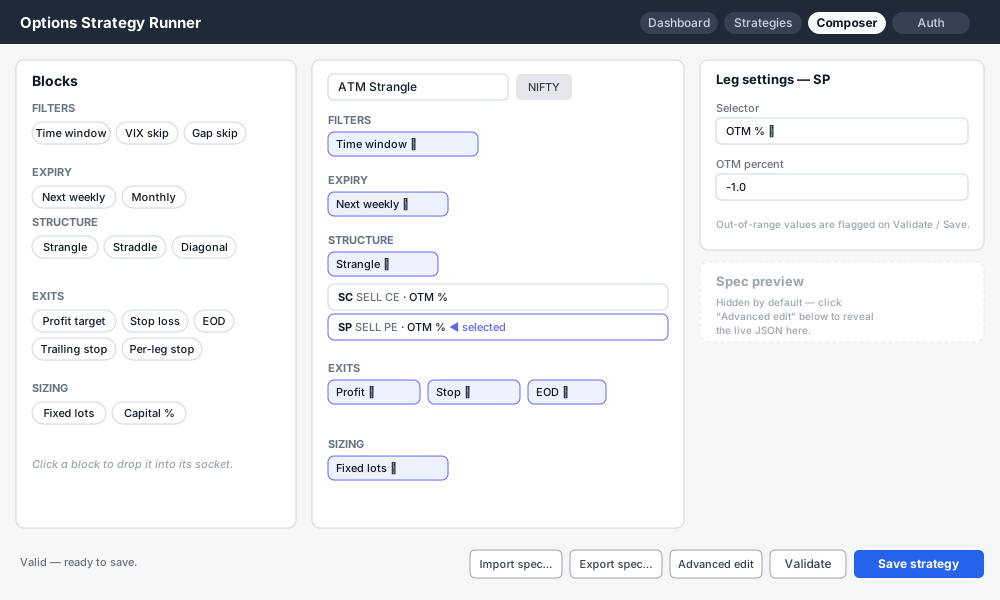
There are four panels and an action bar:
- Blocks (left) — the palette you click from.
- Sockets (center) — your strategy: the name field + seven sockets, shown as chips.
- Block settings (top right) — the parameter form for whatever you've selected.
- Spec preview (bottom right) — hidden by default; click Advanced edit in the action bar to reveal the live JSON, a Valid / Incomplete badge, and (in that mode) hand-edit the JSON directly. See Exporting and advanced editing.
- Action bar (bottom) — status line, Import spec…, Export spec…, Advanced edit, Validate, Save strategy.
One rule to remember: clicking a palette block adds it to its socket. Clicking a chip in the center selects it (so you can edit its params on the right). Clicking the ✕ on a chip removes it.
Next to the name field is the underlying field — type a few characters to shortlist (native browser autocomplete over a <datalist>, same pattern as the Option Scanner's underlying field). The four indices (NIFTY, BANKNIFTY, FINNIFTY, MIDCPNIFTY) are always offered; F&O stock names are fetched live from whichever broker has a live session (Kite, then Breeze, then Dhan — not necessarily whichever the server's default broker setting says) and added to the list once the page loads. No live session on any broker leaves the list at just the four indices, with a hint under the field explaining why. Typing something not on the list snaps back to the last valid underlying on blur. Lot size and strike step are resolved automatically for whichever you pick; you don't set them by hand. Only NIFTY has weekly expiries — every other index and every stock is monthly-only, and the composer rejects a next_weekly expiry block for them at save time. Changing this after building legs doesn't re-pick strikes for you — pick the underlying first.
Three things that only matter once the underlying is an F&O stock, not an index:
- A "Stock read" panel appears under the underlying picker. It shows what the stock-aware blocks (Directional structures, Support/Resistance %, Stock reversal skip) will see for this stock today, so you can tell why they pick what they pick instead of trusting them blindly. Read-only — nothing in it changes your spec. From top to bottom: a direction badge (▲ Bullish / ▼ Bearish / ● Neutral, from daily + weekly RSI) with what a Directional structure would sell as a result (put side only / call side only / both sides); the daily and weekly RSI; last month's high and low with each one's distance from the current price; the best support and resistance levels (at least two touches, within 12% of price — "none in range" when nothing qualifies, in which case the Support/Resistance % selector uses its minimum-distance floor); and the reversal confluence — how many of the three reversal signals (Bollinger, RSI divergence, candlestick) are active out of 3, with ⚠ Reversal flagged when Stock reversal skip would block entry today (it needs a high-quality candlestick pattern plus one of the other two) or ✓ No reversal flag when it wouldn't. A 🔥 Squeeze just released note appears when Bollinger Bands have just broken out of the Keltner Channel; it's context only, not a reversal signal. The panel hides itself for an index underlying, and if the price history can't be fetched it says so and reminds you what the blocks do meanwhile (reversal filter allows entry, strikes use their floor, directional structures sell both sides). It reads daily price history from Yahoo Finance, so it needs no broker session, and refreshes when you change the underlying.
- Physical settlement. Stock options deliver — an ITM short carried to expiry becomes a delivery obligation, with NSE's delivery-margin escalation already running from a few days out.
carry_eodandlong_eod's DTE trigger is floored at DTE=2 for a stock spec regardless of what you set it to; the composer flags a spec saved below that floor at save time. - VIX filters are market-wide, not this underlying's.
vix_skip,vix_floor,vix_and_gap_skip, andregime_skipall read India VIX / NIFTY trend — same reading no matter which stock the spec trades.gamma_targetanddelta_stopare more accurate on a stock: both solve the underlying's own implied vol from a live quote when one is available, falling back to VIX only when it isn't.
Next to that is Min capital ₹ — an optional capital-tier tag for the strategy (how much you'd need to allocate to run it), saved with the spec. Type a number directly, or click Estimate once the structure is valid to auto-fill it: this resolves the strategy's legs at the payoff diagram's Spot/VIX%/DTE and estimates margin from the position's own risk shape — wing width minus net credit for a defined-risk spread (condor/butterfly/vertical), or a stress-move-of-spot heuristic for an undefined-risk position (naked strangle/straddle). It's an estimate, not a broker quote — the live dashboard still calls the real broker margin API once a strategy is actually running.
Walkthrough 1: Tune the seeded strangle and save it
About 3 minutes. This is the fastest way to get a working strategy. You'll take the strangle that's already on screen, change two numbers, and save it.
-
Rename it. In the center panel, click the name field (it says
ATM Strangle) and type a name, e.g.My First Strangle. Click Advanced edit in the action bar if you want to watch the Spec preview'sdisplay_nameupdate as you type. -
Widen the put leg. In the Structure socket you'll see the
Short stranglechip with two leg rows under it:SC SELL CEandSP SELL PE. Click theSProw. The Block settings panel now shows that leg — a Selector dropdown (leave it onOTM %) and an OTM percent field. Change1.0to1.5(a further out-of-the-money put). The spec preview updates theSPparams immediately. -
Loosen the stop. In the Exits socket, click the
Stop losschip. In Block settings, change Stop loss (pts) from60to80. -
Validate. Click Validate in the action bar. The status line should read
Valid — ready to save.(If you typed something out of range — say a stop of9999— it names the exact field and limit instead.) Once valid, a payoff diagram appears below with Spot/VIX%/DTE controls, showing max profit/loss, POP (probability of profit — a Black-Scholes estimate using India VIX as the IV proxy), and breakevens. The Spot field auto-fills with the selected underlying's live LTP (whichever broker has a fresh session) whenever you pick a different underlying — it used to always default to ~24500 (Nifty's range), which was meaningless for a stock like RELIANCE (~1400). No broker session live? It falls back to the last value you typed; edit it by hand. DTE fills the same way: it defaults to the days until the real expiry your Expiry block picks today (a monthly spec entered 20+ days out shows ~29, not the old fixed 7 — at 7 days a far-out-of-the-money strike prices to ~0 and the whole diagram reads 0.0), re-derives when you change the Expiry block, and stops the moment you type your own value (loading a new strategy or template starts over). Because that DTE lands on a real listed contract, a live broker session lets the diagram price with the underlying's own at-the-money implied volatility instead of your typed VIX% — and pick strikes with it too, the way the real entry does (delta-based selectors, including the Support/Resistance % delta cap, size off that same volatility). The chart's spot range is ±15% around spot, widened to reach your outermost strike, so a hedged position's max loss is the full wing width minus the credit, not a figure cut off at the chart's edge. When a Directional structure leaves a side out because the stock's trend is clear, a line under the legs explains it — for example "ℹ Put side not sold — bearish read (RSI 31.8 daily / 34.5 weekly)" — so a one-sided diagram is never a mystery (the Stock read panel shows the same read). Below the chart, an Option Greeks section shows the net position's Delta (Δ), Gamma (Γ), Theta (Θ), and Vega (V) — Black-Scholes estimates at entry, labeled with both the word and the symbol — followed by a P&L table with expiry and mid-trade P&L at spot ±1/2/3% around the current spot. Its Ask AI button builds a summary of the structure (max profit/loss, POP, breakevens), copies it to your clipboard, and — once you confirm the popup — opens ChatGPT, Claude, Perplexity, Gemini, or Copilot (whichever you picked) so you can paste it in for a second opinion on the structure. No API key needed. -
Save. Click Save strategy to open the dialog.
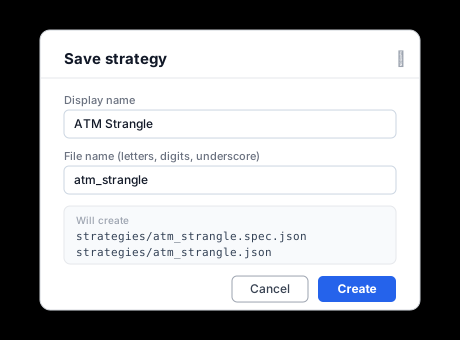
The Display name is filled from step 1, and the File name is auto-slugged (my_first_strangle) — letters, digits, and underscores only. The box shows it will create strategies/my_first_strangle.spec.json and its .json sidecar. Click Create; the status line confirms the save.
- Find it. Open the Strategies list (dashboard). Your strategy is there, disabled. Toggle it on to schedule it, and set Lots / Monitor Interval from its row — exactly like any other strategy.
That's a complete strategy, built and saved without writing code.
Walkthrough 2: Build a different strategy from scratch
About 5 minutes. Now you'll change the shape: turn the strangle into a short straddle with a trailing stop. This covers removing blocks, adding a new structure, and attaching leg selectors.
-
Remove the strangle structure. In the Structure socket, click the ✕ on the
Short stranglechip. The chip and its two leg rows disappear, and the validity badge drops to Incomplete (a strategy needs a structure). -
Add a straddle. In the palette under STRUCTURE, click Short straddle. A
Short straddlechip appears with two leg rows —SC SELL CEandSP SELL PE. A straddle is ATM by definition, so each leg already has the ATM selector and needs no configuration. (You could click a leg and switch its selector toOTM %orDelta targetif you wanted.) -
Swap the stop for a trailing stop. In Exits, click ✕ on the
Stop losschip to remove it. Then in the palette under EXITS, click Trailing stop. Click the newTrailing stopchip to select it, then set Trail by (pts) to e.g.15(exit once profit falls 15 pts from its peak) and Arm after profit (pts) to e.g.20(only start trailing once you're +20). Leave Profit target and EOD in place — the engine acts on the first exit that fires, top to bottom. -
Keep expiry and sizing. These carry over from the seed (
Next weekly,Fixed lots) — the seed has no filters. Adjust either by clicking its chip — e.g. click Fixed lots and set the lot count, or switch sizing by removing it and clicking Capital % in the palette. -
Validate → Save. Click Validate, then Save strategy, name it
atm_straddle_trail, and Create — same as Walkthrough 1.
You've now built a structurally different strategy by swapping blocks in and out.
What "Valid" needs
The badge turns green (and Save succeeds) only when a Structure is set with a selector on every leg it exposes; an Expiry is set (unless the structure resolves its own, e.g. Diagonal); Sizing is set; at least one Exit is present; and every parameter is within its allowed range. Filters are optional. The status line after Validate lists exactly what's missing or out of range.
Block catalog (reference)
Clicking a palette block drops it into the matching socket. Params are edited in Block settings after you select the block (or leg). Hover any field or its label for a tooltip explaining what it means, its units and what direction is safer.
Filters
Entry gates — entry proceeds only if every filter allows it.
| Block | Params | Behavior |
|---|---|---|
| Time window | after |
Allow entry only at/after a time (IST). |
| Date window | from, to |
Allow entry only between two calendar dates, inclusive. Leave either end blank for no bound. A strategy re-arms once it exits, so the scheduler otherwise opens a fresh position the next day — narrow this window for a one-shot positional trade. |
| VIX skip | above |
Skip entry when India VIX is above the threshold. |
| VIX floor | below |
Skip entry when India VIX is below the threshold (premium too thin). |
| Gap skip | pct |
Skip entry when the open gap vs previous close exceeds a percent. |
| VIX + gap skip | vix_above, gap_pct |
Skip only when both the VIX and gap thresholds are breached. |
| Regime skip | block |
Skip entry when the current market regime matches the chosen one. See Regime skip filter below. |
| Stock reversal skip | — | Stock-only. Skip entry when this stock is showing a reversal: a high-quality reversal candlestick in the last 10 daily bars (an engulfing, hammer or shooting star at the end of a move of 3% or more in the direction being reversed, on a bar at least as large as the recent average) plus at least one of a Bollinger band bounce or an RSI divergence. A candle alone, or Bollinger and divergence without a candle, does not skip — mirroring how the source method treats a single weak signal as "go ahead". A Bollinger squeeze release is informational and never triggers a skip. Reads this underlying's own price history — not India VIX/NIFTY like the filters above. Fails open (allows entry) on an index underlying or when the read is unavailable. See Composer Strategy Examples #26 for a worked spec. |
Regime skip filter
Classifies the market into one of eight regimes from NIFTY trend, India VIX volatility, and a risk appetite read, then vetoes entry when the current regime matches the one you pick in block (none disables the filter).
Trend (from NIFTY daily closes):
| Trend | Condition |
|---|---|
| Up | Price > 20-day SMA > 50-day SMA |
| Down | Price < 20-day SMA < 50-day SMA |
| Side | Neither of the above (SMAs flat/crossed) |
Volatility — a majority vote across three signals (from NIFTY/India VIX daily closes):
| Signal | Low vote | High vote |
|---|---|---|
| 20-day realized vol (NIFTY, annualized) | < rv_low | > rv_high |
| India VIX percentile (trailing 1-year) | < 30th pctile | > 70th pctile |
| ΔVIX, 1-day % change | — (no low vote) | > dvix_spike |
2+ low votes → low. 2+ high votes → high. Otherwise → holds yesterday's label instead of flipping — this is what keeps a single expiry-day VIX blip or a day where the three signals disagree from flapping the regime back and forth. (A brand-new instance with no prior day yet defaults to low until a real majority is reached.)
Risk appetite (majority vote across three signals):
| Signal | Risk-off vote | Risk-on vote |
|---|---|---|
| USDINR, 10-day % change | > usdinr_high (rupee weakening) | < usdinr_low (rupee strengthening) |
| Crude (WTI), 10-day % change | > crude_high (crude spiking) | < crude_low (crude falling) |
| VIX − 20-day realized vol (vol points) | > spread_high (VIX running hot vs. what's realizing — hedging demand) | < spread_low (VIX running cold — complacency) |
Whichever side has more votes wins (risk-off / risk-on); a tie, or no signals available, is neutral. The VIX-RV spread replaces what used to be a live FII/DII net-flow read: NSE's FII/DII endpoint has no date parameter (always "today"), which made it unusable for historical/simulation as_of dates — the spread is a standard risk-aversion proxy computed entirely from data already fetched for the volatility axis, so it works identically for live and simulated dates.
Calibration — rv_low/rv_high, dvix_spike, usdinr_low/usdinr_high, crude_low/crude_high, and spread_low/spread_high are data-driven tercile (and top-decile, for the spike) cutoffs computed by broker/regime_calibrate.py from several years of history and written to broker/regime_calibration.json, not hand-picked constants. If that file hasn't been generated yet, regime.py falls back to reasonable hardcoded defaults. Re-run the calibration script yearly (or after a structural shift in market volatility) — it's a manual, static, out-of-sample step by design, so a simulation's regime tag stays reproducible across runs rather than drifting as new data comes in.
Two calibration files, different jobs: broker/regime_calibration.json (committed) is the live/navbar file — always trained up to today. broker/regime_calibration_backtest.json (gitignored, task-specific) is what multi_sim uses for simulated days. python -m broker.regime_calibrate [years] [end_date] writes to whichever one matches the arguments: no end_date → live file (freshest window); an end_date → backtest file, trained only up to that date. Pass an end_date that predates whatever range you're about to simulate, e.g. regime_calibrate 5 2022-12-31 before backtesting 2023 onward — the no-arg form would leak future vol-distribution knowledge into any simulated date inside its training window.
Regime name (trend × volatility, risk appetite only changes the name for uptrend rows):
| Regime | Trend | Volatility | Risk Appetite |
|---|---|---|---|
| Bull Quiet | Up | Low | risk-on / neutral |
| Bull Fragile / Transition | Up | Low | risk-off |
| Bull Volatile | Up | High | risk-on / neutral |
| Bull Exhaustion / Reversal Risk | Up | High | risk-off |
| Range Quiet | Side | Low | any |
| Range Volatile | Side | High | any |
| Bear Turbulent | Down | High | any |
| Bear Drifting | Down | Low | any |
Sideways and downtrend rows keep their name regardless of risk appetite — only the uptrend rows change label based on it. The risk-appetite read itself is still calculated for every regime, so it's available for other filters even where it doesn't change the name.
Add more than one Regime skip block to veto several regimes at once (e.g. one blocking Bear Turbulent, another blocking Bear Drifting).
The classifier pulls NIFTY, VIX, USD-INR, and Crude prices from Yahoo Finance's date-windowed chart endpoint — independent of your broker (Kite/Breeze/Dhan), since not every broker can quote every regime input, and accurate for any historical as_of date (unlike the retired FII/DII source above). India VIX futures term structure (contango/backwardation) was considered as a fourth risk-appetite input but dropped — no free public source exists for the NSE India VIX futures curve. If any input is unavailable, the filter fails open (allows entry) rather than blocking trades.
Multi-day simulations (/multi-sim-results) tag each simulated day with its regime at that day's as_of date, shown in the "Regime" column of the daily breakdown table — useful for spotting whether a strategy's backtest coverage is concentrated in one or two regimes rather than spread across the full range it'll see live.
Reading the sim's Regime column against the navbar/live regime: don't expect them to agree on the same calendar day — they're calibrated on different windows by design (see "Two calibration files" above), so it's normal for a day to show Bull Quiet in a sim run and Bull Volatile on the navbar at the same time. The date isn't what causes the split (classifying today under both calibration files gives the same trend, and usually the same vol vote unless today's realized vol happens to sit between the two files' rv_high cutoffs); the calibration file is. The backtest file's window (2018–2022 by default) includes the COVID vol spike, so its rv_high/rv_low cutoffs sit wider than the live file's more recent, generally calmer window — the same realized-vol reading can clear the live file's bar for "high" without clearing the backtest file's higher bar, landing the same market in low under one file and high under the other. Practical takeaways:
- Use the navbar/live regime to answer "what's the market doing right now" — never the sim's Regime column, even for the most recent sim date.
- Trust the sim's Regime column for day-over-day comparisons within one sim run — every day in a session uses the same calibration file, so those reads are internally consistent.
- For a
regime_skip-gated strategy, expect live to filter out entries somewhat more readily than the backtest suggested, since the live file's high-vol bar is easier to trip — a gap between backtested and live entry frequency here isn't a strategy bug.
Expiry
Which expiry the legs trade.
| Block | Params | Behavior |
|---|---|---|
| Next weekly | min_dte |
Nearest weekly (Tuesday) expiry at least N days out. |
| Monthly | after_dte, after_short |
Nearest monthly (last-Tuesday) expiry at least N days out. after_short measures the N days from the structure's short expiry instead of today — used by Diagonal/Calendar's long leg. |
Leg selectors
Attach to a structure's legs to pick each strike.
| Block | Params | Behavior |
|---|---|---|
| OTM % | pct |
Strike a fixed percent out-of-the-money (above spot for a call, below for a put); negative moves it ITM instead. |
| Strike | strike |
A strike you name outright, snapped to the instrument's strike step. Unlike every other selector it does not move with spot — use it when the thesis is about a specific index level ("24000 put") rather than a distance from today's spot. |
| ATM | — | At-the-money strike on the resolved expiry. |
| Premium target | target_premium, min_premium/max_premium, min_otm_pct/max_otm_pct/step_pct, Friday overrides |
OTM strike, scanned across a range, whose Black-Scholes premium is closest to a rupee target. |
| Delta target | min_delta, min_time_val, fallback time-value caps |
Cheapest deep-ITM strike meeting a delta + time-value floor. |
| Gamma target | target_gamma, min_otm_pct/max_otm_pct/step_pct |
OTM strike, scanned across a range, whose Black-Scholes gamma is closest to a target — picks up the highest rate-of-change-of-delta strike within the band. |
| Delta OTM | target_delta, min_otm_pct/max_otm_pct/step_pct |
OTM strike, scanned across a range, whose Black-Scholes |delta| is closest to a target — unlike Delta target, stays out-of-the-money and has no time-value constraint. |
| Support/Resistance % | min_pct_from_spot, max_delta |
Stock-only. Places the strike at the farthest from spot of three levels: (1) the best multi-timeframe support (put) / resistance (call) level for this stock — pivots on daily, weekly and monthly bars plus unfilled gaps and last month's high/low, at least 2 touches and within 12% of spot; (2) a minimum %-from-spot floor (min_pct_from_spot, default 5); and (3) a delta cap (max_delta, default 0.15, 0 turns it off) — the strike whose |
Structures
The position shape; each exposes named legs.
| Block | Legs | Behavior |
|---|---|---|
| Short strangle | SC (sell CE), SP (sell PE) | OTM call + OTM put short. Same covered checkbox as Short call, applying to the SC leg only — SP always stays naked/cash-secured. |
| Short straddle | SC (sell CE), SP (sell PE) | ATM call + ATM put short (legs default to ATM). Same covered checkbox as Short call, SC leg only. |
| Long straddle | LC (buy CE), LP (buy PE) | ATM call + ATM put bought on the same strike — long volatility. |
| Long strangle | LC (buy CE), LP (buy PE) | OTM call + OTM put bought — long volatility, cheaper than a long straddle. |
| Short call | SC (sell CE) | Single sold call — income leg. Naked by default; a covered checkbox on the structure chip flags it as covered by an existing equity holding — the engine then refuses to arm the entry unless a live holdings lookup shows at least one lot's worth of shares already held, and the min_capital estimate drops to the cost of that cover (no SPAN margin) instead of pricing it as an undefined-risk naked call. |
| Short put | SP (sell PE) | Single sold put — cash-secured-put-style income leg. |
| Long call | LC (buy CE) | Single bought call — directional/momentum leg. |
| Long put | LP (buy PE) | Single bought put — directional/momentum leg. |
| Directional strangle | SC (sell CE), SP (sell PE) — one or both, decided at entry | Stock-only. Short strangle that reads the stock's own daily + weekly RSI at entry: bullish sells only the put, bearish sells only the call, neutral sells both. An index underlying, or an unavailable read, sells both. No covered option (the call leg may be dropped). See Composer Strategy Examples #26. |
| Directional iron condor | SC (sell CE), SP (sell PE) — you configure these; LC/LP wings are added automatically | Stock-only, hedged version of Directional strangle. Reads the stock's own daily + weekly RSI at entry: neutral sells the full iron condor, bullish only the put spread (SP + LP), bearish only the call spread (SC + LC). An index underlying, or an unavailable read, sells the full condor. Wing width is wing_pts on the structure chip (default 50, minimum 5 — stock-sized, unlike the plain Iron condor's 50–300 index range); set it to roughly 3–5% of the stock price. See Composer Strategy Examples #26. |
| Iron condor | 4 legs: SC (sell CE), SP (sell PE) — the two you configure — plus LC (buy CE), LP (buy PE) added automatically | Short strangle plus bought wings placed at short strike ± wing_pts (set on the structure chip). The bought wings cap the max loss and cut margin vs. a naked strangle — the tradeoff is 4 legs to fill instead of 2. |
| Iron butterfly | 4 legs: SC (sell CE), SP (sell PE) — the two you configure — plus LC (buy CE), LP (buy PE) added automatically | Same shape as iron condor, but shorts default to ATM instead of OTM. |
| Bull put spread | SP (sell PE), LP (buy PE) | Sell a put, buy a further-OTM put for protection — credit, bullish. wing_pts sets the gap. |
| Bear call spread | SC (sell CE), LC (buy CE) | Sell a call, buy a further-OTM call for protection — credit, bearish. wing_pts sets the gap. |
| Bull call spread | LC (buy CE), SC (sell CE) | Buy a call, sell a further-OTM call to reduce cost — debit, bullish. wing_pts sets the gap. |
| Bear put spread | LP (buy PE), SP (sell PE) | Buy a put, sell a further-OTM put to reduce cost — debit, bearish. wing_pts sets the gap. |
| Call calendar | SC (sell CE, near expiry), LC (buy CE, far expiry), roll_short_legs |
Same strike, two expiries — pure time-decay play. roll_short_legs (default on) re-sells SC each time it closes while LC stays held; turn off to close once and hold the long leg alone until its own exit. |
| Put calendar | SP (sell PE, near expiry), LP (buy PE, far expiry), roll_short_legs |
Same strike, two expiries — pure time-decay play. Same roll_short_legs toggle as call calendar. |
| Diagonal | LC, LP, SC, SP, roll_short_legs |
Deep-ITM longs on the monthly, ATM shorts on the weekly (own expiries). roll_short_legs (default on) re-sells SC/SP each time they close while LC/LP stay held; turn off to close the shorts once and hold the longs alone until their own long-leg exit. |
Exits
The engine acts on the first one that fires, in order.
Profit-taking exits check for a real market first.
Profit target,Profit target (% of premium), andTime-locked profit(marked 🔒 below) only act on a P&L built from legs with an actual, liquid market behind their price — a broker can quote a live-looking LTP for a contract it then refuses to trade, and a "profit" nobody can transact at isn't real. If any leg the exit would close shows no trading volume/open interest (or is already known untradeable today), the exit is skipped for that cycle and rechecked next time — see Order Lifecycle → Before a profit exit fires. Stop-loss, EOD, and every other safety exit are unaffected — they still fire regardless of liquidity, since holding on isn't the safer option there.
| Block | Params | Behavior |
|---|---|---|
| Profit target 🔒 | pts |
Exit when combined P&L reaches +N points. |
| Profit target (% of premium) 🔒 | pct |
Exit when combined P&L reaches N% of the premium at entry — the net credit for a short structure, the net debit for a long one (a debit spread can target more than 100%). Adapts across volatility regimes better than a fixed points target. |
| Stop loss | pts |
Exit when combined P&L falls to −N points. |
| Stop loss (% of premium) | pct |
Exit when combined P&L falls to −N% of the premium at entry — the net credit for a short structure, the net debit for a long one. Adapts across volatility regimes better than a fixed points stop. |
| Time-locked profit 🔒 | time, pts |
After a time, exit as soon as P&L is at least +N points. |
| Soft exit | time, band |
After a time, exit once P&L is inside ±band points (take the flat trade off). |
| Trailing stop | trail, arm |
Exit when P&L drops trail pts from its peak; only after the peak passes arm. |
| Delta stop | max_abs_delta |
Exit when the position's net delta (Black-Scholes estimate, India VIX as the IV proxy) exceeds ±N — reacts faster to a directional move than a premium-based stop. |
| Volatility stop | pct |
Exit if India VIX has expanded N% from its level at trade entry — catches vol-driven premium expansion before P&L reflects the full damage. |
| Per-leg stop | pts |
Exit the whole position when any single leg loses N points. |
| Per-leg price stop | price |
Exit when any short leg's premium rises above a rupee ceiling. |
| EOD | time |
Force-close any open position at/after a time (IST). |
| Carry position | dte, time |
Overrides EOD — skips the daily force-close and carries the whole open position (all legs, not just the shorts) overnight, closing only once its expiry is N days away (0 = expiry day itself). Not leg-scopable — partial carry would strip a hedge off a naked short. |
| Long leg exit | dte, time, hold_below_pts |
Close remaining long legs when their expiry is N days away (diagonal phase-2). hold_below_pts skips that close when P&L is already worse than the expiry floor — left at 0, a bracket long-combo (long call struck below a long put) auto-derives its floor from strikes/entry prices; any other leg shape just honors the DTE trigger. Set a manual value to override. The short legs always close first (or at the same tick) — if this fires while a short is still open, the engine force-closes the short too before touching the long, even if the short's own exits haven't triggered. Closing the long leg first would spike margin, since it's usually what's hedging the short's requirement. |
Sizing
How many units to trade.
| Block | Params | Behavior |
|---|---|---|
| Fixed lots | lots |
Trade a fixed number of lots. |
| Capital % | capital, pct |
Deploy a percent of a capital base as notional (1 lot = spot × lot size); always ≥ 1 lot. |
Re-entry
Optional; one per strategy. This is unrelated to Diagonal/Calendar's roll_short_legs (see Structures) — this block re-enters the whole position same-day after a stop-loss; roll_short_legs re-sells just the short legs of a diagonal/calendar while its long legs stay held, and runs regardless of whether this block is configured at all.
| Block | Params | Behavior |
|---|---|---|
| Directional re-entry | max_reentries, spot_move_pct, max_daily_loss, confirm_minutes |
After a leg stop, re-enter once a confirming candle shows the move held — capped per day and by cumulative loss. |
Adjustment
Optional; one per strategy.
| Block | Params | Behavior |
|---|---|---|
| Roll a leg | side, trigger_pct, trigger_mult, max_rolls, until, roll_long_legs, long_target_delta, long_delta_band |
Closes a short leg and re-sells it at a fresh strike once it qualifies. Exits are always checked first, so a stop/target firing the same tick wins. See below for how the trigger and modes work. |
Which leg gets rolled. A strangle sells two legs — a call above spot, a put below it. As price moves they drift apart: the leg price moved away from is the quiet leg (decayed, sitting idle); the leg price moved toward is the busy leg (grown expensive, eating into the stop-loss cushion). side picks which one Roll a leg acts on:
untested(default) — cash in the quiet leg once it's decayed totrigger_pct% of its entry premium (30% by default) while the busy leg hasn't given anything back. Rolls it closer to spot for fresh credit.tested— relieve the busy leg once its LTP reachestrigger_mult× entry (1.7× by default), before it can reach its stop. Rolls it further from spot to buy back stop-loss room.both— checks both conditions on both legs every tick; if both qualify, both can roll in the same tick (spending up to two ofmax_rollsat once).untested/testedonly roll one leg per check, whichever qualifies first.
What a roll does: ① close the old leg at today's price, ② open a fresh leg via the same selector the entry used, anchored to current spot, ③ recalculate the profit target and stop-loss around the new combined position.
Guardrails: no rolls after until (14:30 IST by default); at most max_rolls per re-entry cycle (2 by default, resets on each new short re-entry) — beyond that, exits handle any further move; a roll is skipped outright if the new strike would cross the other leg's strike. Only ever acts on a live SC/SP pair — an iron condor's wings are left untouched. On a diagonal/calendar it rolls SC/SP in every short-leg cycle, including re-entries after roll_short_legs re-sells them; the parked long legs (LC/LP) aren't touched by this part of the block and don't block it.
Rolling long legs (LC/LP) too — roll_long_legs. Off by default. A long hedge leg has no decay/pressure framing — it's not sold for credit — so it uses a different trigger: live delta (Black-Scholes, off VIX) has drifted more than long_delta_band away from long_target_delta (0.5 / 0.15 by default). That's the same signal the leg was originally struck on (delta_otm/delta_target selectors), so a roll re-centers it rather than reacting to premium. Same until/max_rolls cutoffs as the short side, same crossing guard (a rolled LC/LP can't cross its paired SC/SP strike), same one-legged-if-it-fails-mid-roll behavior. Checked independently of the short-leg roll — either, both, or neither can happen on a given tick.
If a roll can't complete cleanly (no price found, or the close doesn't confirm), the engine stops rather than risk making it worse — worst case the position is temporarily left one-legged, still watched by the normal exit rules until it's resolved.
What gets created, and what runs
Saving writes two files: strategies/<name>.spec.json (the strategy — the JSON you saw in the preview) and strategies/<name>.json (a sidecar holding display info plus the execution params Lots and Monitor Interval that the dashboard exposes).
The strategy appears and runs in the Strategies list, performance pages, and notifications right away.
Build one with AI first
✨ Build with AI… in the action bar, next to Import spec…, skips clicking blocks together by hand: type what you want (e.g. "short strangle on BANKNIFTY, 30% OTM, 60pt stop, exit at 15:15").
If you've set up an AI provider (Settings → AI (Strategy Composer chat) — a free Groq key or a local Ollama install both work with no cost), this is an in-app chat: your ask goes straight to the model, and every reply is validated against the live block catalog before you see it — an invalid reply gets one automatic correction attempt server-side, and if it's still invalid you see the real validator errors instead of a broken spec. A valid reply shows a payoff summary with an Apply spec button to load it. Keep chatting in the same modal to refine it ("make the short leg 200 points OTM instead") — each message reuses the running conversation.
Without a provider configured, the button falls back to the original handoff: Copy prompt & open AI bundles your ask with the full live block catalog, spec shape rules, and guardrails an AI has no other way to know (NIFTY-only weekly expiry, the stock DTE floor, covered semantics, VIX filters being market-wide) into one prompt, copies it to the clipboard, and — once you confirm the popup — opens whichever chat AI you picked — same no-API-key handoff as the payoff diagram's Ask AI button, just in the opposite direction (asking it to build, not critique). Paste the reply into Import spec… below — a reply wrapped in a ```json code fence (the default for most chat AIs) is stripped automatically before parsing.
Either way, a schema-valid spec still isn't automatically a sound one: check the payoff diagram before Save, same as any hand-built strategy.
Or use your own AI assistant: the strategy skill
The Build with AI dialog has a Download the ThetaPrime strategy skill link. It downloads thetaprime-strategy-builder.zip, a skill for AI assistants that support skills (Claude Code, Claude.ai, Cowork). With it installed, you describe a strategy in plain English and the assistant:
- asks only the questions that affect risk (underlying, lots, stop-loss) and lists every default it filled in;
- builds a
.spec.jsonfrom this build's own block catalog, so it can't use blocks your version doesn't have; - checks the file offline with a bundled validator (needs Python 3 on the machine where the assistant runs; without it the assistant says the spec is "not machine-validated"), and warns about things like a short-options strategy with no stop-loss;
- flags anything it couldn't express with the current blocks instead of quietly approximating it;
- saves the strategy for you if you've connected ThetaPrime's MCP tools and switched on Settings → Safety → "Allow AI assistant (MCP) to save and edit strategy specs"; otherwise it saves
<name>.spec.jsonin a folder you choose; - can also edit an existing strategy that way, but only one that is disarmed, disabled and has no open position, and only after showing you the exact changes (the previous version is kept as a
.bakfile).
If it gave you a file, load it with Import spec… (below); if it saved the strategy directly, it appears in the strategy list, disabled. Either way, check the payoff diagram before enabling it. The skill never enables, arms or runs a strategy, and it only contacts ThetaPrime through those opt-in MCP tools.
Install it: Claude.ai / Cowork — upload the zip in your assistant's skills settings. Claude Code — unzip it into ~/.claude/skills/ (Windows: %USERPROFILE%\.claude\skills\) so that thetaprime-strategy-builder\SKILL.md exists there. The skill is built from your installed version's blocks: after upgrading ThetaPrime, download and install it again to pick up new blocks. Every result states which version's catalog it was built against.
Importing a spec (upload or hand-written)
Everything above builds a spec by clicking. Import spec… in the action bar goes the other way: it takes a finished .spec.json and loads it into the sockets. Use it to bring in a spec someone sent you, to restore one from a backup, or to write the JSON by hand (or with an AI, see above) and then edit it visually.
The dialog takes the spec either way:
- Upload a
.spec.jsonfile — the file is read in the browser and dropped into the text box. Nothing is uploaded to the server and no file is written until you Save. - Paste or hand-write the JSON — type it directly into the text box, or paste what a chat assistant produced.
Click Load and the spec hydrates into the palette sockets exactly as if you'd clicked it together, then Validate runs automatically so any unknown block type or out-of-range parameter is named in the status line immediately.
Three things worth knowing:
- An import is always a new strategy. It loads with no file name attached, so Save strategy prompts for one rather than overwriting whatever the file happened to be called on disk. To update an existing strategy instead, open it with ⋮ → Edit in Composer.
- It replaces your current draft. The dialog says so before you click Load. Save first if the draft matters.
- Malformed input is rejected in the dialog, with the reason, and your draft is left alone — so a truncated paste or a stray comma costs you nothing. Optional sockets may be omitted entirely; they come in empty.
The minimum a spec needs is a blocks object; everything else is filled with the same defaults a fresh strategy gets. See What gets created for the file pair a save produces, and Composer Strategy Examples for complete specs you can paste straight in.
Exporting and advanced (hand-)editing
Export spec… in the action bar is Import's mirror: it downloads the strategy currently open in the composer as a .spec.json file, exactly as it would be written on Save (nothing is written to the server — the file is built and downloaded entirely in the browser). Use it to hand a spec to someone else, keep an out-of-band backup, or start a paste for an AI assistant.
Advanced edit reveals the Spec preview panel, which is hidden the rest of the time to keep the composer focused on the block UI. In advanced edit mode the panel is a live, editable text box:
- Changes to the blocks/sockets on the left keep updating the JSON shown here, same as before.
- You can also type directly into the box. An edit applies when you click away (blur) — not on every keystroke — and runs through the same tolerant parsing Import uses, so an optional socket left out just comes back empty rather than erroring.
- A bad edit (invalid JSON, or JSON missing a
blocksobject) is rejected in place with the reason shown under the box; your last-applied spec is left alone until you fix it. - Unlike Import spec…, hand-editing here does not start a new strategy — it edits the one already open, so Save strategy still overwrites the same file if you were editing an existing one.
Click Advanced edit again to hide the panel; it doesn't discard anything.
Editing an existing strategy
Open a composed strategy's row menu on the dashboard (⋮ → Edit in Composer), or go to /strategy-composer?name=<file base name> directly. The page loads pre-filled with that strategy's blocks. The file name is locked — Save strategy overwrites the same .spec.json + .json in place; there's no rename (delete and rebuild under a new name instead). Execution params — Lots, Monitor Interval — stay editable from the dashboard as before.
The Composer also keeps whatever you're building or editing open across page navigation (e.g. switching to Reports and back) so in-progress changes aren't lost. Click Close in the action bar to discard the open session and start a fresh strategy.
Current limitations (v1)
- Futures aren't in the underlying list — options only (index or single-stock).
- No rename. Editing an existing strategy keeps its file name; to rename, delete and rebuild.
- Click-to-add, no drag-reorder. Exit order is the order you add them.
- Capital % ignores the dashboard "Lots" field — it computes its own lots from capital; P&L is still reported on the units actually traded.
- Save fails if the name collides with an existing strategy name; the dialog shows the error.